Your Apple Pencil isn't just a stylus; it's a powerful extension of your creativity and productivity, transforming your iPad into an even more versatile tool. But to truly unlock its full potential, from precision drawing to effortless note-taking, understanding Apple Pencil accessories, tips, and maintenance isn't just smart—it's essential. This isn't about mere upkeep; it's about optimizing your workflow, extending the life of your device, and ensuring every stroke, tap, and scribble feels as intuitive as possible.
At a Glance: Mastering Your Apple Pencil
- Boost Productivity: Use gestures like Quick Note (swipe up from bottom right) and instant screenshots (swipe up from bottom left) to speed up tasks.
- Scribble Smarter: Convert handwriting to text effortlessly, and use intuitive gestures to edit, select, and delete written words.
- Elevate Your Art: Master shading by tilting your Pencil, auto-correct shapes by holding them, and trace images by placing paper over your iPad.
- Customize Your Experience: Adjust double-tap and squeeze gestures (on Pencil 2 & Pro) to fit your personal workflow in Settings.
- Maintain Peak Performance: Regularly check and replace your Apple Pencil tip for optimal precision and responsiveness.
- Apple Pencil Pro Perks: Unlock new interactions with squeeze and roll gestures, haptic feedback, and the peace of mind of Find My integration.
- Accessorize for Success: Invest in replacement tips, protective cases, ergonomic grips, and screen protectors to enhance comfort and durability.
- Extend Longevity: Clean your Pencil gently, store it safely, and manage battery health to ensure it serves you well for years to come.
The Core of Creativity: Why Your Apple Pencil Deserves Attention
Think of your Apple Pencil as a high-performance instrument. Just like a musician tunes their violin or an artist cares for their brushes, understanding the nuances of your Apple Pencil—from the right accessories to proper maintenance—directly impacts your experience. A well-maintained Pencil delivers consistent precision, while thoughtful accessories can make long creative sessions more comfortable and productive. Ignoring these aspects means settling for less than your best work and potentially shortening your Pencil's lifespan.
Unlocking Hidden Potential: Essential Apple Pencil Productivity Tips
The Apple Pencil isn't just for artists. iPadOS has evolved to integrate the Pencil seamlessly into your daily productivity, offering features that can genuinely transform how you interact with your device.
Quick Note Mastery: Capture Ideas Instantly
Ever had a fleeting thought or needed to jot down a quick detail without switching apps? With iPadOS 15 and later, your Apple Pencil makes this incredibly easy. Simply swipe up from the bottom right corner of your iPad screen with your Pencil. A small note window will pop up, ready for you to scribble down anything that comes to mind. It's context-aware, too; if you're browsing Safari, Quick Note will even offer to add a link to the page you're viewing, saving you precious seconds.
Scribble Like a Pro: Transform Handwriting to Text
For many, the idea of handwriting notes digitally only to have to retype them defeats the purpose. Enter Scribble, a feature that converts your handwritten text into typed characters in real-time. This is incredibly useful for filling out forms, searching the web, or composing emails directly with your Pencil.
Mastering Scribble involves a few key gestures:
- Selecting a word: Double-tap or draw a quick circle around the word.
- Selecting larger text blocks: Underline or circle the desired text.
- Deleting words: Simply scratch out the word with your Pencil.
- Joining or separating characters: Draw a vertical line between characters to join them, or through a word to separate it.
These intuitive gestures make handwritten editing feel remarkably natural, integrating the analog feel of writing with the digital convenience of text.
Instant Screenshots & Markup: Annotate on the Fly
Need to capture what's on your screen and quickly highlight something? Forget button combinations. Just swipe up from the bottom left corner of your screen with your Apple Pencil. This instantly takes a screenshot, which then appears as a small thumbnail in the corner. Tap it, and you're immediately in Markup tools, where you can use various pens, pencils, and highlighters to annotate, circle, or draw arrows before saving or sharing. It's a lifesaver for feedback, presentations, or sharing quick visual instructions.
Seamless Digital Signatures: Seal the Deal Digitally
Signing documents often means printing, signing, scanning, and then sending—a cumbersome process. Your Apple Pencil streamlines this entirely. Open any document in Photos, Notes, or the Files app. Tap the Markup icon (a pen tip), then the "+" icon, and finally, "Signature." You can then sign directly on your iPad screen with your Apple Pencil, creating a digital signature that looks just like your real one. It's fast, secure, and eliminates the need for physical paperwork.
Searchable Handwritten Notes: The Power of iPadOS
One of the most powerful, yet often overlooked, features is iPadOS's ability to recognize and index your handwritten notes. This means your scribbled thoughts, to-do lists, and brainstorms are just as searchable as your typed notes or scanned documents. Need to find a specific date, address, or phone number you jotted down months ago? iPadOS can find it, making your handwritten archives fully accessible and highly practical. This intelligent recognition truly bridges the gap between digital and analog note-taking.
Elevating Your Art: Drawing & Design Techniques
For artists, designers, or even just casual doodlers, the Apple Pencil offers an incredible degree of control and nuance. But sometimes, a few simple techniques can unlock a whole new level of expression.
Mastering Shading: The Art of Tilt
One of the most impressive features of the Apple Pencil is its tilt sensitivity, mimicking traditional art tools. To achieve natural-looking shading, simply tilt your Apple Pencil against the iPad screen. The more you angle it, the wider and softer the "stroke" becomes, just like using the side of a graphite pencil or charcoal stick. Experiment with different angles and pressure to vary the intensity and coverage, adding depth and dimension to your sketches and illustrations.
Perfect Shapes on Demand: Auto-Correcting Genius
Are your circles more like ovals and your squares a little lopsided? The iPad has a hidden helper. When drawing a rough shape—like a circle, square, triangle, or even a star—simply hold your Apple Pencil in place for a moment after completing the shape. Watch as your iPad automatically snips and corrects it into a perfectly geometric figure. This feature is a fantastic time-saver for diagrams, flowcharts, or foundational sketches where precision is key.
Effortless Tracing: Bring Ideas to Life
Tracing isn't just for kids; it's a valuable technique for artists to transfer sketches, refine compositions, or even practice drawing. With your Apple Pencil and iPad, it's easier than ever. Find an image you want to trace, open it on your iPad, and turn the screen brightness up high. Now, place a thin piece of paper directly over the iPad screen. Open your drawing app (like Notes, Procreate, or Freeform) and start a new layer. You'll be able to see the image beneath and trace directly onto your digital canvas, capturing details with precision.
Customization & Care: Keeping Your Pencil Peak Performance
A high-performing tool is a well-maintained and personalized one. The Apple Pencil offers options to tailor its behavior to your preferences, and crucial maintenance steps ensure it remains responsive and accurate.
Personalizing Your Workflow: Quick Gestures
All Apple Pencil models offer some level of gesture customization, allowing you to tailor quick actions to your most frequent needs. Dive into Settings > Apple Pencil > Gestures to explore options like adjusting how screenshots are taken or activating Quick Note. Taking a few moments to configure these can significantly streamline your workflow, making interactions feel more intuitive and less interrupted.
Optimizing Double-Tap: For Apple Pencil 2 & Pro
The second-generation Apple Pencil and the newer Apple Pencil Pro introduce a convenient double-tap gesture on the barrel. By default, it often switches between your current tool and the eraser. However, you can customize this action to better suit your creative process. Navigate to Settings > Apple Pencil > Double-Tap. Here, you can set it to:
- Switch between the current tool and the last-used tool.
- Display the color palette for quick changes.
- Show ink attributes (like thickness or opacity).
This little customization can save you countless taps on the screen toolbar, keeping your focus on your canvas. For the Apple Pencil 2 specifically, a quick double-tap on the lower part of the pencil lets you switch between tools efficiently.
When and How to Replace Your Apple Pencil Tip
The tip of your Apple Pencil is its most crucial interface with your iPad screen. Over time, with consistent use, it will inevitably wear down. Ignoring a worn tip can lead to decreased precision, responsiveness, and potentially even damage to your screen protector.
Signs of Wear
- Decreased Precision/Responsiveness: If your strokes aren't landing exactly where you intend, or if there's a noticeable lag.
- Visible Wear: The tip might appear flattened, frayed, or discolored. You might even feel a slight ridge or unevenness.
- Different Feel on Screen: It might feel rougher, stickier, or simply "off" compared to when it was new.
Frequent users, especially those using "paper-feel" screen protectors, should check their tip regularly—perhaps monthly—as these surfaces can accelerate wear.
The Replacement Process
Replacing the tip is straightforward:
- Unscrew the old tip: Gently twist the old tip counter-clockwise until it comes off.
- Screw in the new tip: Take a new Apple Pencil tip and screw it in clockwise until it feels secure. Do not over-tighten, as this could damage the Pencil's internal threading.
- Test the Pencil: Briefly use your Apple Pencil to ensure it's responding correctly.
Good news for Apple Pencil 2 owners: it typically includes a replacement tip in the box, so you're ready when the time comes.
Deep Dive: Apple Pencil Pro — A New Era of Interaction
The Apple Pencil Pro, a significant leap forward, introduces an entirely new dimension of interaction, but it's important to note its specific compatibility requirements. This advanced tool requires a 2024 iPad Air (M2) or 2024 iPad Pro (M4) and iPadOS 17.5 or later to unleash its full suite of capabilities.
What Makes the Pro 'Pro'?
Beyond the foundational Apple Pencil features, the Pro model brings:
- Squeeze: A gentle squeeze of the barrel activates new palettes or tools, customizable to your preference.
- Roll: Intuitively rotate the Pencil Pro to change the orientation of certain tools, like brushes or calligraphy pens.
- Haptic Feedback: Subtle vibrations confirm actions like a squeeze, providing a more tactile and responsive experience.
- Find My Integration: The ability to locate your misplaced Pencil Pro using the Find My app.
Compatibility Check
It's crucial to understand that the Apple Pencil Pro is designed specifically for the latest iPad models. While older iPads might technically "see" the Pencil, its unique features like squeeze and roll will only function with the 2024 iPad Air (M2) and 2024 iPad Pro (M4). Additionally, certain apps might not immediately support all handwriting-to-text or full touch capabilities, so always check app compatibility.
Pairing and Powering Your Pro
Pairing your Apple Pencil Pro is as seamless as ever: simply attach it magnetically to the long side of your supported iPad. This also serves as its charging point. To check its battery level, go to Settings > Apple Pencil Pro.
Tailoring Pro Interactions: Squeeze & Double-Tap Customization
The Apple Pencil Pro allows for even deeper personalization of its gestures:
- Squeeze: By default, a squeeze brings up the tool palette. However, in
Settings > Apple Pencil Pro > Change Pencil Actions, you can reassign it to: - Switch between tools.
- Show the color palette.
- Show ink attributes (e.g., thickness, opacity).
- Activate a Siri shortcut.
- Turn the feature off entirely.
- Double-Tap: Similarly, the double-tap gesture, usually set to switch between the current tool and eraser, can also be customized to show the color palette or ink attributes.
These customizations empower you to create a workflow that truly feels like an extension of your thought process.
Scribble Refinement: Practice Makes Perfect
For those new to Scribble or looking to improve their handwriting recognition, the Apple Pencil Pro offers a dedicated practice area. Access it via Settings > Apple Pencil Pro > Try Scribble. Here, you can practice:
- Converting handwriting to text.
- Deleting text by scratching it out.
- Selecting text by drawing a line through it.
- Inserting text by tapping and holding.
- Joining text with a vertical line.
This guided practice helps you get comfortable with the gestures and ensures your handwritten notes are accurately converted.
Pro Drawing Toolkit: Understanding the Palette
When you're working in apps like Notes or Freeform, squeezing the Apple Pencil Pro brings up a dynamic, context-sensitive palette of tools.
Convert Handwriting to Text
Within the palette, tap the icon that looks like a pencil with the letter 'A' on it. Now, anything you write will be converted into typed text.
Drawing Tools
The palette presents various pen tools:
- Thick/Thin Pen: For varied line weights.
- Marker: For bold strokes and highlights.
- Colors: Easily change your ink color directly from the palette. Tap a tool, then tap it again to access shading/thickness icons.
Eraser & Lasso
- Eraser Tool: Select the eraser icon and draw over objects you wish to remove.
- Lasso Tool: Tap the lasso icon, then draw a freeform selection around objects. Once selected, you can easily change their color or move them around the canvas.
The Ruler Tool
For perfectly straight lines, tap the Ruler tool. You can then position it with two fingers on your screen and draw against its edge with your Pencil. Tap the ruler icon again to make it disappear.
Additional Palette Tools
Tap the + icon on the toolbar to expand your options, adding stickers, text boxes, signatures, or geometric shapes. The ellipsis icon (...) provides more settings, like minimizing the palette, controlling whether you can draw with your finger, or jumping straight to Pencil settings.
Undo/Redo & Minimizing the Palette
Quickly correct mistakes with the Undo/Redo icons on the palette. If the palette is getting in your way, you can minimize it or move it around the screen to suit your needs.
Precision Power: Pressure Sensitivity & Hover Function
The Apple Pencil Pro takes precision to another level:
- Pressure Sensitivity: As with previous Pencils, vary the line thickness by applying light pressure for thin lines and heavy pressure for thick, bold strokes. This nuance is crucial for expressive drawing and calligraphy.
- Hover Function: A small circular shadow appears on the screen when the Pencil tip hovers close to the surface. This shows exactly where your tool will land, offering unparalleled precision, especially when working on intricate details or selecting small UI elements.
Never Lose Your Pencil: Find My Integration
One of the most practical new features is the integration with Apple's Find My network. If you tend to misplace your accessories, this is a game-changer.
- To Add: Open the Find My app on your iPad, tap the Devices tab, attach your Apple Pencil Pro to your iPad, tap the
+icon, select Apple Pencil, and follow the on-screen instructions. - To Locate: If your Pencil Pro goes missing, open the Find My app on any of your Apple devices (iPhone, iPad, Mac). Go to the Devices tab, select your Apple Pencil Pro, and either view its last known location on a map or mark it as lost to receive notifications when it's found.
This feature offers significant peace of mind, especially for such a valuable tool.
Essential Apple Pencil Accessories That Elevate Your Experience
Beyond the Pencil itself, a few well-chosen accessories can significantly enhance your comfort, protection, and overall usage.
Replacement Tips: A Must-Have in Your Kit
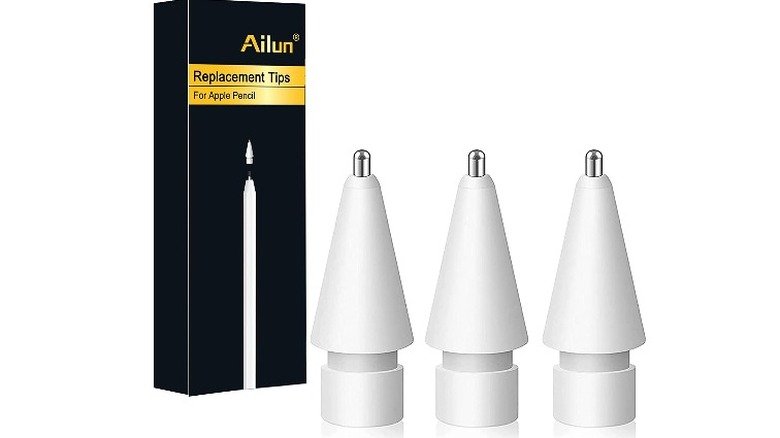
As discussed, tips wear down. Having a pack of official Apple Pencil tips (or high-quality third-party alternatives if you've done your research) on hand is non-negotiable. Don't let a worn tip disrupt your flow or, worse, potentially scratch your screen. They're a small investment that pays off in uninterrupted creativity and consistent performance.
Cases & Sleeves: Protection and Portability
Whether you toss your iPad into a backpack or carry it by hand, protecting your Apple Pencil from scratches, dents, or accidental drops is smart.
- Magnetic Cases: Many iPad cases now feature a dedicated magnetic slot or flap for the Apple Pencil 2/Pro, ensuring it's always attached and charging.
- Pouch/Sleeve: For the Apple Pencil 1 or for those who prefer detached storage, a small fabric or silicone sleeve can protect it when not in use. Some even have a slot for an extra tip!
Grips: Ergonomics for Extended Use
If you spend hours drawing, writing, or designing, you might find the Apple Pencil's sleek, smooth barrel a bit slick or thin. Ergonomic grips, typically made of soft silicone, can:
- Improve Comfort: Provide a more substantial and comfortable hold.
- Reduce Fatigue: Lessen strain on your fingers and hand during long sessions.
- Enhance Control: Offer better grip, preventing slips.
Look for grips that don't interfere with charging or double-tap functionality (for Pencil 2/Pro).
Screen Protectors: Paper-Feel vs. Clarity
The type of screen protector you choose can dramatically alter your Apple Pencil experience.
- "Paper-feel" Screen Protectors: These textured matte films mimic the resistance and sound of drawing on paper. They provide excellent tactile feedback for artists and note-takers, making the experience feel more natural. Be aware that they can accelerate tip wear and might slightly reduce screen clarity.
- Clear/Glass Screen Protectors: These prioritize crystal-clear screen visibility and maximum scratch protection. The Apple Pencil glides very smoothly, which some users prefer for certain tasks. They offer less "grip" for drawing but protect your screen effectively.
The best choice depends on your primary use case.
Charging Solutions: For Apple Pencil 1
The first-generation Apple Pencil charges via its Lightning connector. While it can plug directly into your iPad, an accessory charger can be a game-changer:
- Lightning Adapter Cable: A short cable allows you to charge your Pencil from your iPad without it sticking out awkwardly, reducing the risk of damage.
- Dedicated Charging Stand: Some third-party stands provide a stable dock for charging, keeping your Pencil upright and safe.
These accessories make charging the Pencil 1 much more convenient and less precarious.
Troubleshooting Common Apple Pencil Issues
Even the best tools can occasionally act up. Here are quick fixes for common Apple Pencil problems.
Not Connecting/Pairing
- Check Bluetooth: Ensure Bluetooth is enabled on your iPad (
Settings > Bluetooth). - Re-pair: For Apple Pencil 1, plug it into your iPad's Lightning port. For Apple Pencil 2/Pro, attach it magnetically to the long side. If it doesn't prompt to pair, try restarting your iPad.
- Charge: A completely dead Pencil won't pair. Give it a few minutes to charge.
- Compatibility: Double-check your Apple Pencil model is compatible with your specific iPad model.
Unresponsive or Laggy
- Check Tip: A loose or worn-out tip is a common culprit. Unscrew and re-screw it, or replace it entirely.
- Clean Screen/Tip: Dirt or smudges on the screen or Pencil tip can interfere.
- Restart App/iPad: Sometimes a problematic app or a full system restart can resolve performance issues.
- Charge: Low battery can affect performance.
Battery Drain
- Background Usage: Ensure the Pencil is not actively being used by an app in the background.
- Disconnect When Not In Use (Pencil 1): For the first-gen Pencil, explicitly disconnect it from your iPad's Bluetooth if you won't be using it for a while.
- Pencil 2/Pro Placement: Ensure it's correctly attached to the magnetic connector on your iPad when not in use; this keeps it charged and prevents unnecessary battery drain.
- Update iPadOS: Software bugs can sometimes affect battery life; ensure your iPad is running the latest iPadOS version.
Tip Wear Issues
- Regular Inspection: Make it a habit to visually check your tip every few weeks, especially if you're a heavy user or use a paper-feel screen protector.
- Replace Promptly: Don't delay replacing a worn tip. It protects your screen and maintains precision.
- Consider Tip Covers: Some third-party silicone tip covers can extend tip life and alter the writing feel, but might affect pressure sensitivity.
Maintenance Best Practices for Longevity
Proper care doesn't just keep your Apple Pencil looking good; it significantly extends its lifespan and ensures reliable performance.
Cleaning Your Apple Pencil
- Gentle Wipes: Use a soft, lint-free cloth, slightly dampened with water, to wipe down the barrel of your Pencil.
- Avoid Harsh Chemicals: Do not use abrasive cleaners, solvents, or aerosol sprays, as these can damage the finish or internal components.
- Clean Tip Area: Carefully clean around the tip and the magnetic charging area (for Pencil 2/Pro) to remove any dust or debris that could interfere with connection or charging.
Storage Tips
- Secure Attachment (Pencil 2/Pro): When not in use, always attach your Apple Pencil 2 or Pro magnetically to your iPad. This keeps it secure and ensures it stays charged.
- Protective Case (All Models): For Pencil 1 or when traveling with any model, a protective case or sleeve prevents scratches and accidental damage.
- Avoid Extreme Temperatures: Don't leave your Pencil in direct sunlight or in a very cold environment, as extreme temperatures can degrade battery life.
Battery Health: Avoid Deep Discharge
Like all rechargeable batteries, the Apple Pencil's battery benefits from consistent charging. Try to avoid letting it completely drain to 0% frequently. If you're not using it for an extended period, ensure it has some charge (around 50%) before storing it. Regular, short charges are generally better for battery longevity than infrequent, deep cycles.
Choosing the Right Apple Pencil for You: A Quick Guide
While this guide focuses on accessories, tips, and maintenance, understanding which Apple Pencil model best suits your iPad is foundational. Each generation of iPad typically supports one or two specific Pencil models. For example, knowing which Apple Pencil works with the iPad 10th Gen Apple Pencil Guide is crucial to ensuring compatibility and accessing the features you need. Always check Apple's compatibility charts before purchasing to ensure your Pencil works seamlessly with your iPad.
Your Digital Companion: Maximizing Your Investment
Your Apple Pencil is more than just a peripheral; it's a gateway to new levels of interaction and creativity on your iPad. By embracing the productivity tips, honing your artistic techniques, choosing the right accessories, and committing to diligent maintenance, you're not just caring for a device—you're investing in your own efficiency, comfort, and creative freedom. Treat it well, and it will be a reliable companion for countless projects, notes, and sketches to come, ensuring every stroke is as effective and enjoyable as possible.