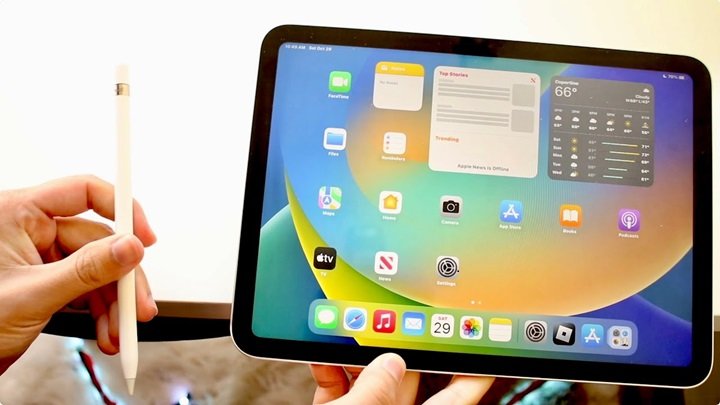
The iPad 10th Generation is a fantastic tablet, hitting that sweet spot between performance, portability, and price for many users. But if you’re looking to unlock its full potential for drawing, note-taking, or creative work, understanding the Features & Functionality of Apple Pencil with iPad 10th Gen is absolutely crucial. It's not as simple as grabbing just any Apple Pencil; your 10th Gen iPad has a unique compatibility story you need to hear.
This guide cuts through the confusion, offering a clear, comprehensive look at which Apple Pencils work with your iPad, what each one brings to the table, and how to choose the right digital pen for your needs. We'll dive deep into the specific features, connectivity quirks, and practical benefits so you can make an informed decision and truly enjoy your iPad experience.
At a Glance: Apple Pencil & iPad 10th Gen Essentials
Here’s what you absolutely need to know right off the bat when considering an Apple Pencil for your iPad 10th Generation:
- Two Compatible Pencils: Your iPad 10th Gen works with either the Apple Pencil (1st Generation) or the Apple Pencil (USB-C).
- The Big No-Gos: The Apple Pencil (2nd Generation) and the brand-new Apple Pencil Pro are not compatible with the iPad 10th Gen.
- 1st Gen's Catch: If you choose the Apple Pencil (1st Gen), you must use a USB-C to Apple Pencil Adapter for both pairing and charging. This is an extra accessory you'll need.
- USB-C's Simplicity: The Apple Pencil (USB-C) plugs directly into your iPad 10th Gen's USB-C port for pairing and charging, making it very straightforward.
- Pressure Sensitivity Difference: The Apple Pencil (1st Gen) offers pressure sensitivity, which is vital for artists. The Apple Pencil (USB-C) does not have pressure sensitivity.
- Tilt Sensitivity: Both compatible Pencils offer tilt sensitivity, allowing for varied line weights and shading when tilting the pencil.
- Decision Factor: Your choice largely depends on whether pressure sensitivity (for detailed art) is a must-have, or if basic note-taking and annotation are your primary goals.
Decoding the Apple Pencil Lineup: A Quick Guide
Before we zero in on the iPad 10th Gen, it helps to understand the full Apple Pencil family. Apple has continually refined its digital stylus, leading to four distinct models, each designed with specific iPad hardware in mind. This means compatibility is not universal, and it’s where many users first encounter confusion.
The four models are:
- Apple Pencil (1st Generation): The original, iconic white pencil.
- Apple Pencil (2nd Generation): Introduced with the redesigned iPad Pro, featuring magnetic attachment.
- Apple Pencil (USB-C): A more recent addition, designed for broader USB-C iPad compatibility.
- Apple Pencil Pro: The latest and most advanced, released in 2024 with cutting-edge features.
While it's fascinating to explore the advancements across all these models, for your iPad 10th Gen, our focus narrows down to the first and third options. The other two, despite their advanced capabilities, simply won't connect or function with your tablet.
Your iPad 10th Gen's Unique Pencil Story
The iPad 10th Gen introduced a significant design change: it ditched the Lightning port for USB-C, aligning with most of Apple's modern devices. This was a welcome upgrade for many, simplifying charging cables across their tech ecosystem. However, it also created a bit of a compatibility puzzle for the Apple Pencil.
Specifically, the iPad 10th Gen supports:
- Apple Pencil (1st Generation): With an adapter required for pairing and charging.
- Apple Pencil (USB-C): Directly, thanks to its USB-C port.
This means you have two distinct pathways to bringing an Apple Pencil into your workflow. Let's break down each option, its features, and what it means for you.
Option 1: Embracing the Classic – Apple Pencil (1st Generation)
The original Apple Pencil, with its glossy finish and slightly rounded body, was a game-changer when it first arrived. It brought unprecedented precision and responsiveness to the iPad, making digital drawing and handwriting feel remarkably natural. For the iPad 10th Gen, it remains a powerful tool, but with one critical caveat.
Key Features of the Apple Pencil (1st Gen)
- Pressure Sensitivity: This is the flagship feature for artists. The Pencil can detect how hard you're pressing down, allowing you to create thicker, darker lines with more pressure, and lighter, thinner lines with less. This nuance is essential for shading, varied brush strokes, and expressive calligraphy.
- Tilt Sensitivity: Just like a traditional pencil, you can tilt the Apple Pencil to achieve different effects, such as shading or broad strokes, depending on the angle. This works wonderfully for adding depth and texture to your digital artwork.
- Low Latency: There's minimal delay between your hand movement and what appears on the screen, creating a fluid, paper-like writing and drawing experience.
- Pixel-Perfect Precision: It offers incredible accuracy, allowing you to draw and write with confidence, even for intricate details.
The Adapter: Your Essential Go-Between for iPad 10th Gen
Here's the critical detail: the Apple Pencil (1st Gen) was designed to charge and pair by plugging its Lightning connector directly into a Lightning port. Since your iPad 10th Gen has a USB-C port, a direct connection is impossible.
Enter the USB-C to Apple Pencil Adapter. This small, inexpensive dongle (often sold separately, or included with new 1st Gen Pencils in certain regions) is absolutely mandatory.
- Pairing: To initially pair your 1st Gen Apple Pencil with your iPad 10th Gen, you'll plug the adapter into your iPad's USB-C port, and then plug the Apple Pencil into the adapter. Your iPad will prompt you to pair.
- Charging: Charging works the same way. You'll need the adapter to connect the Pencil to your iPad for power. This means you can't just attach it magnetically or plug it directly into a charger; the adapter is always part of the process.
This setup, while functional, isn't as seamless as newer Pencil models. It's an extra piece to keep track of, and it means the Pencil protrudes from the side of your iPad while charging, making it less ideal for portability during charge cycles.
Pros and Cons for iPad 10th Gen Users
Pros:
- Pressure Sensitivity: Essential for serious artists and designers, offering a richer creative experience.
- Reliable Performance: A proven workhorse with excellent accuracy and low latency.
- Often More Affordable: Sometimes you can find the 1st Gen Pencil at a lower price point than the USB-C model, even with the adapter.
Cons: - Requires Adapter: An extra accessory for both pairing and charging, making the process less elegant.
- Awkward Charging: The Pencil sticks out from the side of your iPad during charging, which can be inconvenient and fragile.
- No Magnetic Storage: It doesn't magnetically attach to the side of your iPad 10th Gen for convenient storage. You'll need a case with a pencil loop or a separate storage solution.
- Glossy Finish: Some users prefer the matte finish of newer Pencils for grip.
Option 2: The Modern Connector – Apple Pencil (USB-C)
Released in 2023, the Apple Pencil (USB-C) was designed to bridge the compatibility gap for the growing number of iPads featuring USB-C ports. For iPad 10th Gen users, it offers a straightforward, plug-and-play experience without the need for an adapter. However, this simplicity comes with a significant trade-off.
Key Features of the Apple Pencil (USB-C)
- USB-C Charging & Pairing: This is its defining feature for the iPad 10th Gen. Simply slide the retractable USB-C connector out of the Pencil and plug it directly into your iPad’s USB-C port. It pairs instantly and begins charging.
- Tilt Sensitivity: Like the 1st Gen, it accurately detects the angle at which you hold it, allowing for dynamic shading and varied line strokes.
- Low Latency: You still get that smooth, lag-free experience that makes writing and drawing feel natural.
- Magnetic Attachment (for Storage): While it doesn't charge wirelessly, the Apple Pencil (USB-C) magnetically attaches to the side of your iPad 10th Gen for secure storage, which is a big convenience compared to the 1st Gen.
- Double-Tap (Limited): It supports the double-tap gesture to switch tools in some apps, similar to the 2nd Gen Pencil. However, this functionality can be app-dependent.
- Hover (Not for iPad 10th Gen): The USB-C Pencil does support the hover feature, but only on compatible iPad Pro models. Your iPad 10th Gen does not support the hover feature, so this won't be a benefit for you.
- Matte Finish: Many users find the matte finish more comfortable to hold and less prone to slipping than the glossy 1st Gen.
The Missing Link: No Pressure Sensitivity
This is the critical difference and the main reason why artists will often steer clear of the Apple Pencil (USB-C). Unlike the 1st Gen, this model does not detect pressure sensitivity.
What does this mean in practice? When you draw or write with the USB-C Pencil, the line thickness and opacity will remain consistent regardless of how hard you press. While tilt sensitivity helps with some artistic effects, the absence of pressure sensitivity makes it less suitable for professional illustration, detailed painting, or calligraphy that relies on dynamic line work.
Pros and Cons for iPad 10th Gen Users
Pros:
- Direct USB-C Connection: No adapter needed for pairing or charging, making it a much cleaner and simpler experience.
- Magnetic Storage: Conveniently snaps to the side of your iPad for secure transport.
- Matte Finish: Preferred by some for grip and feel.
- More Affordable: Often the most budget-friendly Apple Pencil option if you purchase it new.
Cons: - NO Pressure Sensitivity: A major drawback for artists, illustrators, and anyone who needs dynamic line control.
- No Wireless Charging: While it attaches magnetically, it doesn't charge that way; you still have to plug it in.
- Limited Double-Tap: Not all apps support the double-tap feature, unlike the 2nd Gen and Pro models.
Why the Apple Pencil 2nd Gen and Apple Pencil Pro Won't Work
It's common for people to assume "newer is better" or that a more advanced Pencil would simply be backward compatible. Unfortunately, this isn't the case with Apple Pencils and iPads. The Apple Pencil (2nd Generation) and the Apple Pencil Pro rely on specific internal hardware within the iPad to function.
- Magnetic Charging and Pairing: Both the 2nd Gen and Pro Pencils use magnetic attachment for both storage and wireless charging/pairing. This magnetic system is integrated into the chassis of specific iPad models (primarily iPad Pro, iPad Air, and iPad mini 6th Gen and newer).
- Hardware Requirements: The iPad 10th Gen simply lacks the necessary inductive charging coils and communication hardware to support these advanced Pencils. Trying to attach them will result in nothing happening – no charging, no pairing, no functionality.
So, while the Apple Pencil (2nd Gen) offers features like double-tap and the Pro boasts squeeze and roll gestures, they are simply not an option for your iPad 10th Gen. Don't waste your time or money trying to make them work!
Choosing Your Best Match: 1st Gen vs. USB-C for iPad 10th Gen
Now that you know your options, how do you decide which Apple Pencil is right for you? It boils down to your primary use cases and priorities.
Are You an Artist, Illustrator, or Hand Letterer?
- Go with the Apple Pencil (1st Gen).
- Why: Pressure sensitivity is non-negotiable for creating varied line weights, shading, and expressive strokes. Without it, detailed artistic work feels flat and imprecise. The adapter is an inconvenience, but the creative freedom it unlocks is worth it.
- Consider: Do you have a good storage solution for the Pencil when not in use? Are you comfortable with the slightly less elegant charging method?
Are You a Note-Taker, Annotator, or Casual Sketcher?
- Consider the Apple Pencil (USB-C) first.
- Why: For taking notes in class, marking up PDFs, signing documents, or doing basic sketches, the USB-C Pencil offers excellent tilt sensitivity, low latency, and a smooth experience. The absence of pressure sensitivity isn't a deal-breaker for these tasks. Its direct USB-C charging and magnetic storage are incredibly convenient.
- Consider: Do you ever anticipate needing pressure sensitivity? If your needs might evolve towards more artistic endeavors, the 1st Gen offers more creative headroom.
- The iPad 10th Gen Apple Pencil compatibility and feature set are perfectly adequate for most educational and productivity tasks with the USB-C model.
Are You Budget-Conscious?
- Both Pencils are often priced similarly when new, with the USB-C model sometimes being slightly less. However, remember the 1st Gen requires the adapter if not included.
- Refurbished 1st Gen Pencils can sometimes be found at a discount.
- Decision: Prioritize features over marginal cost differences. If pressure sensitivity is a need, the 1st Gen is the better value despite the adapter. If convenience and basic functionality are key, the USB-C model is the smarter spend.
Getting Started: Pairing & Charging Your Chosen Pencil
Once you've made your decision, getting your Apple Pencil ready for action is straightforward.
For Apple Pencil (1st Generation) with iPad 10th Gen:
- Locate Your Adapter: Ensure you have the USB-C to Apple Pencil Adapter.
- Connect to iPad: Plug the USB-C end of the adapter into your iPad 10th Gen's USB-C port.
- Connect Pencil: Plug the Lightning end of your Apple Pencil (1st Gen) into the adapter.
- Pair: Your iPad should display a "Pair" button. Tap it. If it doesn't appear, ensure Bluetooth is enabled in your iPad's Settings.
- Charging: To charge, keep the Pencil connected to the adapter, and the adapter connected to your iPad. Your iPad will power the Pencil.
For Apple Pencil (USB-C) with iPad 10th Gen:
- Expose USB-C Connector: Slide the cap on the Apple Pencil (USB-C) to reveal the USB-C connector.
- Plug into iPad: Insert the USB-C connector directly into your iPad 10th Gen's USB-C port.
- Pair: Your iPad should automatically detect and prompt you to pair the Pencil. Tap "Pair." If not, ensure Bluetooth is on.
- Charging: The Pencil will charge whenever it's plugged into your iPad's USB-C port. For storage, simply snap it to the side of your iPad magnetically.
Unlocking Creativity: Practical Uses and Hidden Gems
Once paired, your Apple Pencil transforms your iPad 10th Gen into an even more versatile tool. Here are some ways to leverage its features:
- Fluid Note-Taking: Ditch paper for digital notebooks like Apple Notes, Notability, or Goodnotes. The low latency and precision make handwriting feel natural. You can easily organize, search, and share your notes.
- Scribble: Write directly into any text field, and your iPad converts your handwriting to typed text in real-time. This is incredibly useful for filling out forms or quickly jotting down thoughts without switching to the keyboard.
- Smart Selection: Double-tap on a handwritten word to select it, or triple-tap to select an entire sentence. You can then copy, paste, or convert it to typed text.
- Artistic Expression: For those with the 1st Gen Pencil, apps like Procreate, Adobe Fresco, or Affinity Designer become powerful creative studios.
- Dynamic Brushstrokes: Utilize pressure and tilt sensitivity to create rich, layered artwork with varied line weights and shading.
- Precision Details: Zoom in for intricate linework and enjoy pixel-perfect accuracy.
- Markup and Annotation: Whether it's a PDF, a screenshot, or a web page, the Apple Pencil excels at marking it up.
- Review Documents: Highlight key passages, add handwritten comments, or draw diagrams directly on PDFs in apps like Files or LiquidText.
- Visual Communication: Quickly draw arrows, circles, and notes on screenshots to clearly communicate ideas.
- Navigating iPadOS: The Apple Pencil isn't just for creative tasks. You can use it to precisely tap buttons, scroll through apps, and interact with your iPad's interface, sometimes with more accuracy than a finger.
Frequently Asked Questions (FAQs)
Can one Apple Pencil be used on multiple iPads?
Yes, but only if all the iPads are compatible with that specific Apple Pencil model. For instance, an Apple Pencil (1st Gen) can be paired with your iPad 10th Gen, and then later paired with an iPad 9th Gen. You'll need to re-pair it each time you switch between different iPads.
Does Apple Pencil Pro work with older iPads?
No, the Apple Pencil Pro requires specific, advanced hardware found only in the very latest iPad Pro (M4) and iPad Air (M2/M3) models. It is not compatible with older iPads, including the iPad 10th Gen.
Are there cheaper alternatives to Apple Pencil?
Yes, there are many third-party styluses available for iPads. Brands like Logitech (Crayon) or Adonit offer options. However, these alternatives often lack some of the advanced features of the Apple Pencil, such as full pressure sensitivity (though some offer tilt), magnetic charging, or the same level of low latency and integration with iPadOS. For basic navigation and note-taking, they can be a cost-effective choice.
How do I pair Apple Pencil (USB-C) with iPad 10th Gen?
Simply slide the cap on the Apple Pencil (USB-C) to expose its USB-C connector, then plug it directly into your iPad 10th Gen's USB-C port. Your iPad will automatically detect it and prompt you to "Pair." Ensure Bluetooth is enabled on your iPad.
How do I pair Apple Pencil (1st Gen) with iPad 10th Gen?
You'll need the USB-C to Apple Pencil Adapter. Plug the USB-C end of the adapter into your iPad 10th Gen's USB-C port. Then, plug the Lightning end of your Apple Pencil (1st Gen) into the adapter. Your iPad will show a "Pair" button; tap it to connect. Make sure Bluetooth is on.
What features are lost if I don't use an Apple Pencil with my iPad?
Without an Apple Pencil, you lose access to highly precise input for writing and drawing. Key features you miss out on include pressure sensitivity (if using 1st Gen), tilt sensitivity, pixel-perfect accuracy, and extremely low latency for a natural pen-on-paper feel. While your finger can perform basic tasks, it lacks the finesse for detailed creative work, precise annotations, and the seamless handwriting-to-text conversion offered by features like Scribble.
Your Next Stroke: Making the Most of Your iPad
Choosing the right Apple Pencil for your iPad 10th Gen is about aligning its unique capabilities with your personal and professional needs. Whether you're an aspiring digital artist who needs the nuanced control of pressure sensitivity or a student looking for a simple, reliable tool for notes and annotations, an Apple Pencil can dramatically enhance your iPad experience.
Take a moment to truly consider what you'll use it for most often. The slight inconvenience of the adapter for the 1st Gen might be a small price to pay for artistic freedom, while the plug-and-play simplicity of the USB-C Pencil might be ideal for your everyday productivity. Either way, once you introduce an Apple Pencil to your workflow, you'll wonder how you ever managed without it. Dive in and let your creativity flow!
Untuk pemahaman lebih lengkap, baca panduan utama kami: The iPad 10th Gen Apple Pencil