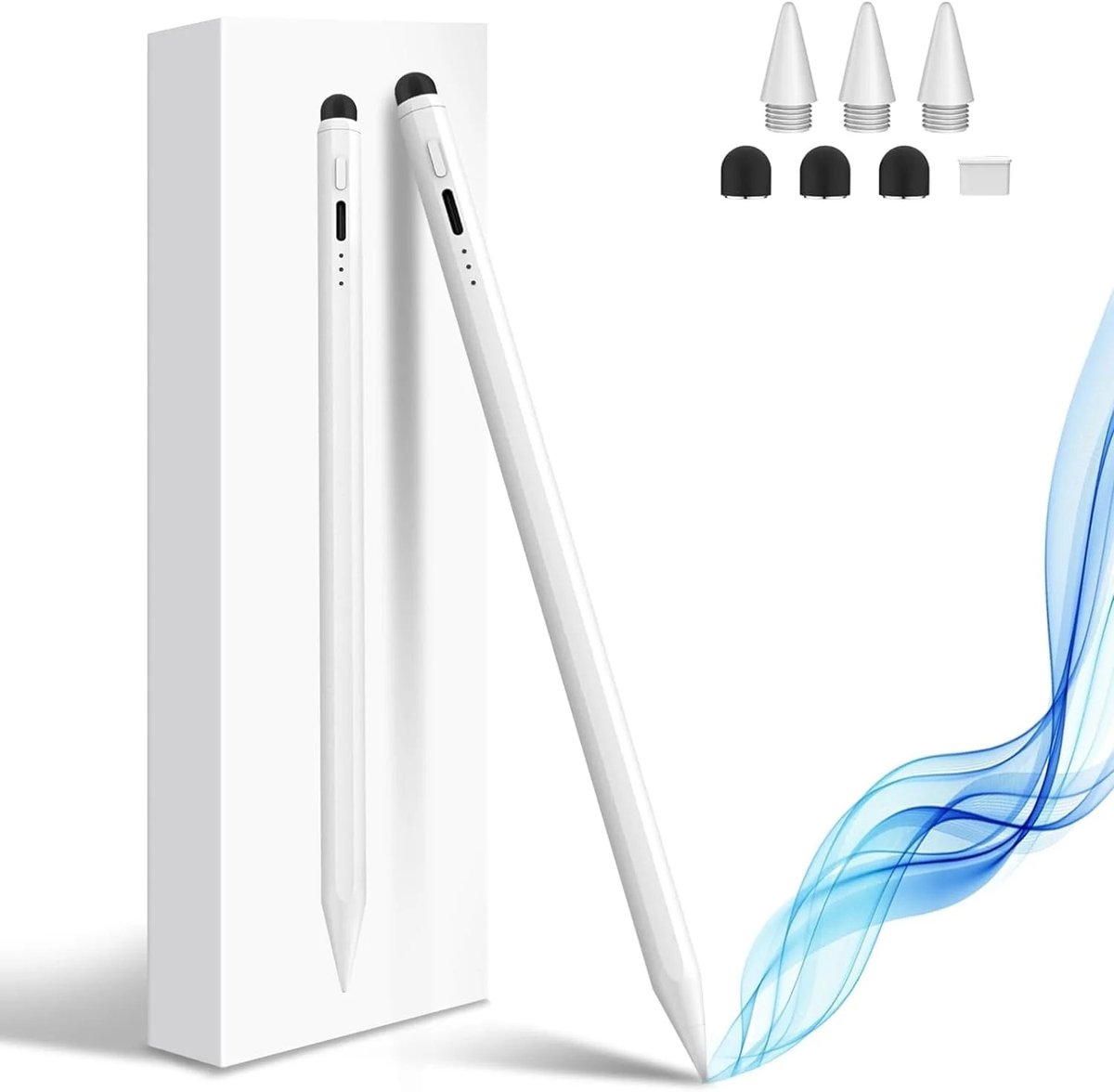
When you pair an Apple Pencil with your iPad 10th Gen, you're not just getting a stylus; you're unlocking a powerful toolkit for creativity and productivity. This guide will walk you through Mastering Digital Art & Note-Taking with Apple Pencil on iPad 10th Gen, transforming your device into a versatile canvas and a smart notebook. Whether you're a student, a professional, or an aspiring artist, this combination offers an intuitive, precise, and surprisingly fun way to interact with your digital world.
No more printing out documents to mark them up, or sketching ideas on scraps of paper that inevitably get lost. Your iPad 10th Gen, combined with the Apple Pencil, brings a fluid, natural experience to everything from brainstorming sessions to detailed illustrations.
At a Glance: Your Digital Superpowers
- Quick Note: Instantly jot down ideas or links with a simple swipe.
- Freeform App: Brainstorm, diagram, and collaborate on a limitless digital whiteboard.
- Scribble: Write naturally with your Pencil, and watch your handwriting seamlessly convert to typed text.
- Mark Up Screenshots: Capture and annotate screens in seconds for quick feedback or sharing.
- Note-Taking & Art Apps: Tailor your experience with powerful apps like Notability and GoodNotes, or dedicated drawing software.
- Seamless Organization: Keep your digital life tidy with folders, tags, and cloud backups.
- Effortless Sharing: Export, email, or print your work directly from your iPad.
The Power Duo: iPad 10th Gen & Apple Pencil
The iPad 10th Generation is a fantastic device, offering a beautiful Liquid Retina display and powerful performance. But to truly elevate its capabilities, especially for tasks that demand precision and a personal touch, the Apple Pencil is indispensable. For the iPad 10th Gen, you’ll be using the 1st Generation Apple Pencil.
While newer iPads might support the 2nd Gen Pencil, the 1st Gen model still delivers incredible accuracy, low latency, and pressure sensitivity that makes digital inking feel remarkably natural. It’s perfect for everything from quick sketches to detailed annotations, ensuring your creative and professional output is always polished.
Unlocking Creativity: Essential Apple Pencil Features You Need to Know
Apple has baked some incredibly useful features into iPadOS that are specifically designed to shine when you're wielding an Apple Pencil. These aren't hidden tricks; they're core functionalities that will instantly boost your productivity and creative flow.
Instant Ideas with Quick Note
Imagine you're browsing the web, watching a video, or even just thinking, and an idea strikes. You don't want to break your flow by navigating through apps. That's where Quick Note comes in.
How to Use It:
Simply swipe your Apple Pencil from the bottom-right corner of your iPad's screen. A small, floating note window will appear. Tap on it, and you can immediately start writing, sketching, or even adding a link to whatever you were viewing. When you're done, swipe it away, and it saves automatically.
Why It's a Game-Changer:
Quick Note is your digital scratchpad, always ready. It integrates seamlessly with whatever you're doing, allowing you to capture fleeting thoughts without losing context. If you add a link to a website, for example, that link becomes part of your Quick Note, ready to take you back whenever you need it. It's perfect for capturing research snippets, sudden bursts of inspiration, or creating a quick to-do list while working in another app.
Your Infinite Whiteboard: The Freeform App
Brainstorming sessions, project planning, or collaborative art projects often feel constrained by traditional whiteboards or paper. Enter the Freeform app – a boundless digital canvas that truly shines with the Apple Pencil.
How to Dive In:
Open the Freeform app and tap to create a new board. You’ll be greeted with an expansive, flexible canvas. Pick up your Apple Pencil, and a rich set of drawing tools will appear: a watercolor brush, a calligraphy pen, highlighters, and more. You can sketch diagrams, write notes, add sticky notes, insert photos, documents, and web links – all on the same board.
Collaborate with Ease:
Freeform isn't just for solo work. You can invite others to your board and collaborate in real-time. Whether you're in the same room or across continents, you can see each other's edits and contributions instantly. You can even start a FaceTime call directly from Freeform, making remote collaboration feel much more personal and interactive. It’s ideal for:
- Mapping out project timelines.
- Designing floor plans.
- Creating mood boards.
- Brainstorming session summaries.
- Storyboarding creative projects.
Write It, Type It: The Magic of Scribble
One of the most impressive features for note-takers is Scribble. This technology allows you to write directly with your Apple Pencil into any text field on your iPad, and it instantly converts your handwriting into typed text. No more switching between keyboard and Pencil!
Activating Scribble:
- Go to your iPad's Settings app.
- Scroll down and tap on Apple Pencil.
- Toggle Scribble to the "on" position.
Putting It to Use:
Once enabled, simply start writing with your Apple Pencil in any text input area—whether it's a search bar, a messaging app, a document editor, or even renaming a file. Your words will appear as typed text almost magically. The conversion happens privately on your iPad, so your data stays secure. You can even use gestures: scratch out words to delete them, draw a line between words to add a space, or circle text to select it. This bridges the gap between the natural feel of handwriting and the efficiency of digital text.
Feedback in a Flash: Mark Up Screenshots
Ever needed to quickly highlight something on your screen or give visual feedback? Marking up screenshots with your Apple Pencil makes it incredibly easy.
The Swift Screenshot:
Swipe your Apple Pencil from the bottom-left corner of your iPad screen. This instantly captures a screenshot. The screenshot will appear as a thumbnail in the bottom-left corner.
Adding Your Mark:
Tap the thumbnail, and the screenshot opens in a full-screen editing interface. Your Apple Pencil drawing tools will appear at the bottom. You can use various pens, highlighters, and shapes to annotate, circle, draw arrows, or write notes directly onto the image.
Sharing Your Feedback:
Once you're done, tap the "Share" icon (the square with an arrow pointing up) to send your marked-up screenshot via email, messages, AirDrop, or save it to your Photos. This feature is invaluable for giving design feedback, pointing out errors on a webpage, or highlighting key information in an article for a colleague.
Your Digital Canvas: Mastering Note-Taking & Art
With the core Apple Pencil features understood, let's get down to the practical steps of setting up your iPad 10th Gen for serious note-taking and digital art.
Choosing Your Commander Center: Note-Taking & Drawing Apps
While the built-in Notes and Freeform apps are excellent starting points, dedicated third-party apps truly unlock the full potential of your Apple Pencil.
Why App Choice Matters:
Different apps are designed with different workflows in mind. Some prioritize organization, others focus on detailed drawing tools, and some excel at PDF annotation. Experimenting is key to finding your perfect fit.
Top Contenders for Note-Taking:
- Notability: Known for its fantastic audio recording capabilities, which sync directly with your written notes. This is particularly good for organizing lectures or meetings, allowing you to tap on a word in your notes and hear what was said at that exact moment. It also offers a great range of pen styles and organizational tools.
- GoodNotes: Often praised for its paper-like feel and extensive customization options. It's perfect for detailed annotations on PDFs, creating digital notebooks, and offers a wide variety of digital paper templates. Its handwriting recognition is robust, allowing you to search your handwritten notes. Many artists also use GoodNotes for sketching due to its fluid ink engine.
Beyond Note-Taking (for Digital Art):
While the ground truth focuses on note-taking, if you're venturing into digital art, consider apps like: - Procreate: (iPad-exclusive, paid) Industry-standard for digital illustration, offering an incredible array of brushes, layers, and advanced features.
- Concepts: (Freemium) A vector-based sketching app, great for architects, designers, and visual thinkers who need infinite canvas and precision tools.
- Adobe Fresco: (Freemium) Combines raster and vector brushes, offering a natural drawing and painting experience, especially with its live brushes that mimic real watercolor and oil paints.
Steps to Download Your Chosen App:
- Open the App Store on your iPad.
- Use the search bar to find apps like "Notability," "GoodNotes," "Procreate," etc.
- Tap on the app you want, read reviews, and check its features.
- Tap "Get" (for free apps) or the price (for paid apps) to download and install.
Connecting Your Creative Wand: Apple Pencil Setup
For your iPad 10th Gen, you'll be using the 1st Generation Apple Pencil. Connecting it is straightforward, but it's different from the 2nd Gen's magnetic pairing.
Connecting Your 1st Gen Apple Pencil:
- Remove the Cap: Take off the cap from the back of your Apple Pencil to reveal the Lightning connector.
- Plug into iPad: Carefully plug your Apple Pencil into the Lightning port on the side of your iPad 10th Gen. This is the same port you use to charge your iPad.
- Pairing Request: Your iPad will display a Bluetooth pairing request. Tap Pair.
- Confirm Connection: Once paired, you'll see a small notification, and your Apple Pencil will be ready to use.
A Quick Note on Charging:
The 1st Gen Apple Pencil charges by plugging into your iPad's Lightning port. While this is convenient for pairing, it's not the most ergonomic way to charge long-term. You might consider purchasing a small adapter (often comes with the Pencil or sold separately) that allows you to charge it with a standard Lightning cable, keeping your iPad free for use. Ensure your Pencil is adequately charged for uninterrupted creative sessions.
Your First Digital Strokes: Getting Started in an App
Once your app is downloaded and your Apple Pencil is connected, it’s time to start creating.
- Launch Your App: Open Notability, GoodNotes, or your chosen drawing app.
- Create a New Note/Canvas: Look for a "+" icon or a "New Note" / "New Document" button. Tap it to open a fresh page or canvas.
- Explore the Tools:
- Pen Types: Experiment with different pen styles (ballpoint, fountain, brush) to see how they feel and what effects they produce.
- Colors: Dive into the color palettes. Many apps allow you to save your favorite colors or create custom ones.
- Eraser: Test different eraser sizes and types (pixel eraser vs. stroke eraser).
- Highlighter: Practice highlighting text or sketches.
- Shapes Tool: Learn how to draw perfect shapes (circles, squares, lines) with a steady hand or by using the app's shape recognition features (often by pausing briefly at the end of your stroke).
Don't be afraid to just doodle and play around. The more you experiment, the more comfortable you'll become with the digital medium and your chosen app's interface.
Fine-Tuning Your Workspace: Customizing Settings
Getting the most out of your digital tools means customizing them to fit your personal style and needs.
Customize Writing Settings:
Within your note-taking or art app, you’ll find options to adjust:
- Pen Thickness/Brush Size: Fine-tune your lines for precision or bold strokes.
- Paper Style/Background: Change grid lines, dotted paper, lined paper, blank canvases, or even import custom backgrounds. This is where digital note-taking shines—you're not limited to one notebook style.
- Palm Rejection: Most apps have excellent palm rejection, meaning you can rest your hand on the screen naturally as you write or draw, without making unwanted marks. Ensure this is enabled for the most comfortable experience.
Set Up Auto-Backup to Cloud Services (Crucial!):
Your notes and artwork are valuable. Don't risk losing them! Most reputable note-taking and drawing apps offer auto-backup to cloud services. - How to Set Up: Go to the app’s settings menu. Look for "Backup," "Cloud Sync," or "Auto-Backup" options.
- Choose Your Service: Select a cloud service like iCloud, Google Drive, Dropbox, or OneDrive.
- Why It Matters: Automatic backups ensure that if anything happens to your iPad (damage, loss, or accidental deletion), your work is safe and accessible from other devices or after restoring your iPad. It’s peace of mind for your digital creations.
Strategies for Success: Elevating Your Digital Workflow
Once you’re comfortable with the basics, it’s time to refine your approach and make your digital art and note-taking truly effective.
Beyond Basic Notes: Tips for True Mastery
Mastering your Apple Pencil isn't just about knowing the features; it's about integrating them into a seamless workflow.
- The Right App for You: Revisit your app choice after a few weeks of use. Is it meeting all your needs? Do you feel limited? Sometimes, switching to another app or even using a combination (e.g., Freeform for brainstorming, Notability for lectures) can significantly improve your experience. Each app has its nuances, and what works for one person might not work for another.
- Leveraging Templates: Many note-taking apps offer a wide range of customizable templates—from Cornell notes to daily planners, sheet music, or even storyboarding layouts. Using these can save you time and provide a consistent structure for your work. Don't be afraid to explore community-made templates online as well.
- Syncing with Cloud Services (Again, It's That Important!): We mentioned auto-backup, but actively using cloud services for syncing extends beyond mere backup. It allows you to access and edit your notes and art across multiple Apple devices (if you have them), or even on a computer through a web interface, depending on the app. This creates a flexible, accessible workspace. For a comprehensive look at how the Apple Pencil integrates with your specific device, check out our iPad 10th generation Apple Pencil guide.
- Experimenting with All Tools: Don't get stuck using just one pen and one color. Explore the full spectrum of tools available.
- Highlighters: Use different colors to signify different levels of importance or categories of information.
- Shapes Tool: Use it for quick diagrams, flowcharts, or even basic perspective guides in drawings.
- Image Import: Integrate photos from lectures, web pages, or your own camera into your notes or artwork.
- Text Boxes: Combine handwritten notes with typed text for clarity or to copy-paste information quickly.
- Mastering App Shortcuts: Most robust apps have specific gestures or button actions you can learn to speed up your workflow. For example, a double-tap on the Apple Pencil (for 2nd Gen, but some apps emulate this or offer similar gestures for 1st Gen users through on-screen toolbars) might switch between your current tool and the eraser. Look for "gestures" or "shortcuts" in your app's settings or help documentation. The quicker you can switch tools or undo mistakes, the smoother your creative process will be.
Organizing Your Digital Universe
A pile of digital notes is just as useless as a pile of paper ones if you can't find what you need. Effective organization is crucial.
- Folders and Tags: Within your note-taking app, create logical folder structures. For students, this might be by subject; for professionals, by project or client. Use tags to cross-reference notes that might belong to multiple categories (e.g., a "meeting notes" tag that spans different projects). This dual system ensures discoverability.
- Handwriting Recognition's Power: Many advanced note-taking apps offer excellent handwriting recognition. This doesn't just convert your writing to text; it makes your handwritten notes searchable. You can type a keyword, and the app will find relevant handwritten passages. This is an absolute game-changer for reviewing large volumes of notes.
Sharing Your Creations and Ideas
Your digital work isn't meant to live in isolation. Sharing is an integral part of collaboration, presentation, and backup.
- Exporting Versatility: Most apps allow you to export your notes or artwork in various formats:
- PDF: Ideal for sharing documents, maintaining formatting, and ensuring your recipients can view it easily. Perfect for class notes or meeting minutes.
- Images (JPEG, PNG): Best for sharing sketches, diagrams, or individual pages of your notes for quick viewing.
- Native App Format: Useful for sharing with other users of the same app who might want to edit your work further.
- Direct Sharing Options: Share notes by exporting them via email, directly into cloud services like Google Drive or iCloud, or even print them directly from the app if you have a compatible printer.
- Collaborative Features: Don't forget Freeform's real-time collaboration. Many other apps also offer shared folders or documents, allowing multiple people to work on the same file simultaneously. This is indispensable for group projects or team-based design work.
Common Questions & Smart Answers
Even with powerful tools, questions can arise. Here are answers to some frequent queries about the Apple Pencil and iPad 10th Gen.
Q: Can I use a different stylus with my iPad 10th Gen instead of the Apple Pencil?
A: While many third-party styluses exist, none offer the same level of integration, precision, palm rejection, and pressure sensitivity as the Apple Pencil (1st Gen) on the iPad 10th Gen. For the best experience in digital art and note-taking, the Apple Pencil is highly recommended. Generic styluses often lack pressure sensitivity and precise tip tracking, leading to a less natural and less capable experience.
Q: Is the 1st Gen Apple Pencil "good enough" for serious use on the iPad 10th Gen?
A: Absolutely! The 1st Gen Apple Pencil is a highly capable device, offering excellent accuracy, low latency, and pressure sensitivity. While it lacks the double-tap gesture of the 2nd Gen, it provides a premium experience for drawing, writing, and annotating on the iPad 10th Gen. Many professional artists and students use it daily with fantastic results.
Q: How do I keep my digital notes and artwork secure?
A: The most important step is to set up auto-backup to a reliable cloud service (iCloud, Google Drive, Dropbox, etc.) within your note-taking or art apps. Additionally, enable Face ID or Touch ID on your iPad to secure the device itself. Some apps also offer password protection for individual notebooks or sections.
Q: What about screen protectors for drawing? Do they make a difference?
A: Yes, many digital artists and note-takers prefer a matte, "paper-feel" screen protector. These protectors add a slight texture to the screen, increasing friction and making the Apple Pencil feel more like drawing on paper, offering better control and reducing glare. It's a personal preference, but many find it significantly enhances the drawing and writing experience.
Q: My Apple Pencil isn't connecting or isn't responding. What should I do?
A: First, ensure your Apple Pencil is charged. For the 1st Gen Pencil, plug it into your iPad's Lightning port for a few minutes. Then, check your iPad's Bluetooth settings (Settings > Bluetooth) to make sure Bluetooth is on and the Apple Pencil is listed as "Connected." If not, try "forgetting" the device and re-pairing it by plugging it in again. A simple iPad restart can also often resolve connectivity glitches.
Beyond the Basics: Embracing Advanced Techniques
Once you've mastered the fundamentals, the Apple Pencil on your iPad 10th Gen opens doors to even more advanced creative and productive pursuits.
- Digital Journaling and Planning: Move beyond simple notes. Use apps like GoodNotes or Notability to create elaborate digital planners, vision boards, or daily journals. You can insert stickers, photos, and expressive handwriting to make your journal uniquely yours, completely free from the constraints of physical paper.
- Sketching Blueprints or Storyboards: For designers, architects, or filmmakers, the iPad and Apple Pencil are powerful tools for early-stage conceptualization. Apps like Concepts (for precise, scalable vector drawings) or Procreate (for freeform sketching) allow you to quickly draft layouts, character designs, or shot sequences with incredible detail and flexibility. The ability to easily move, resize, and layer elements digitally streamlines the iterative design process.
- Creating Concept Art and Illustrations: Whether you're a seasoned artist or just starting, your iPad 10th Gen with Apple Pencil can serve as a portable digital studio. Apps like Procreate offer a vast array of brushes, blending modes, and layer management tools that enable you to create professional-quality digital paintings and illustrations. Learn about perspective guides, color theory tools, and masking techniques to elevate your art.
- Annotating PDFs and Textbooks: For students and professionals, annotating large documents is a breeze. Import textbooks, research papers, or legal documents into apps like GoodNotes or Notability. You can highlight, underline, add sticky notes, write marginalia, and even insert drawings, making your study or review process active and highly personalized. Many apps even allow you to flatten your annotations into the PDF for easy sharing.
- Using the Apple Pencil for Presentations: Take your presentations beyond static slides. With apps like Keynote or Freeform, you can use your Apple Pencil to live-annotate during a presentation, highlight key points, or draw spontaneous diagrams to explain complex ideas in real-time. This dynamic interaction keeps your audience engaged and makes your delivery more impactful.
Your Next Steps to Digital Fluency
You now have the knowledge and strategies to truly make your iPad 10th Gen and Apple Pencil work for you. The journey to mastery is ongoing, but with these foundational skills, you're off to a fantastic start.
- Commit to an App: Pick one primary note-taking or art app and spend dedicated time learning its ins and outs. Don't constantly switch; deep familiarity with one tool is more valuable than superficial knowledge of many.
- Practice Regularly: Like any skill, digital art and effective note-taking require practice. Doodle during downtime, sketch out your thoughts, or simply transcribe your daily to-dos. The more you use your Apple Pencil, the more natural it will feel.
- Explore Tutorials: Most popular apps have extensive online tutorials and communities. Watch videos, read guides, and learn from others to discover new techniques and workflows.
- Back Up Consistently: Make cloud backup a habit. Check your app's sync status regularly to ensure your precious work is always safe.
Embrace the versatility and freedom that the Apple Pencil brings to your iPad 10th Gen. From rapid brainstorming to intricate artwork, your device is now a powerful extension of your creativity and intellect. Go forth and create!